TL;DR
- The fastest way to add every FIFA World Cup 2026 match to Google Calendar is via sync2cal.com – it takes under 60 seconds.
- Visit https://www.sync2cal.com/sports/soccer/international/fifa-world-cup-2026 and click the Google Calendar sync button.
- The calendar auto-updates when kickoff times or match details change – you don’t need to re-import anything.
- You can also copy the iCal (.ics) link to add the schedule to Outlook, Apple Calendar, or any other calendar app.
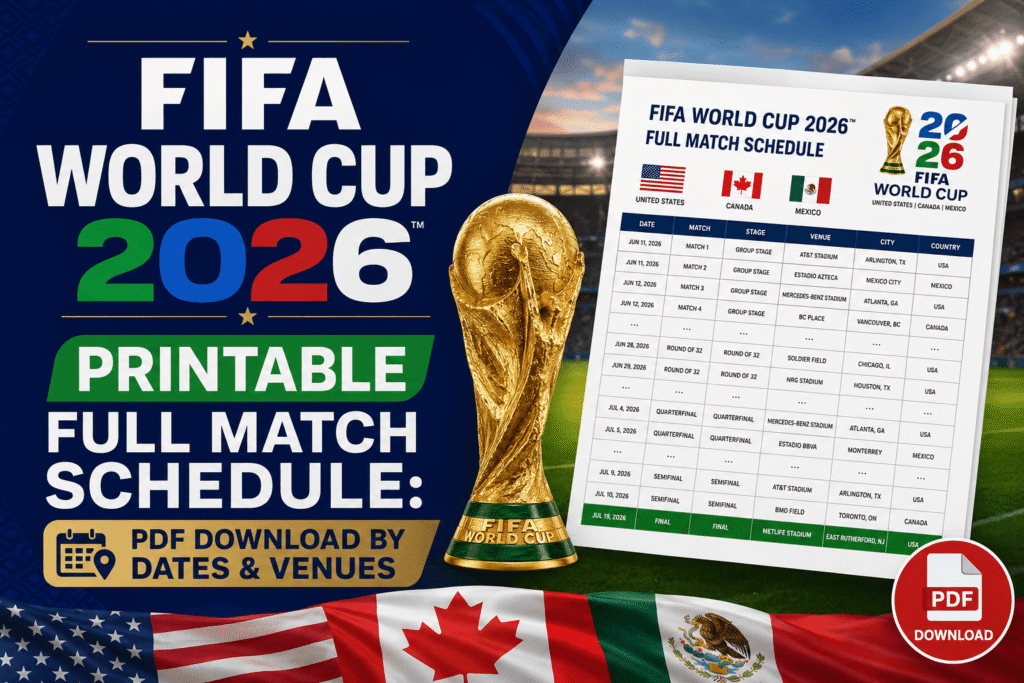
- All 104 matches are included, from the group stage through to the final on July 19, 2026.
The Fastest Way to Add FIFA World Cup 2026 to Google Calendar
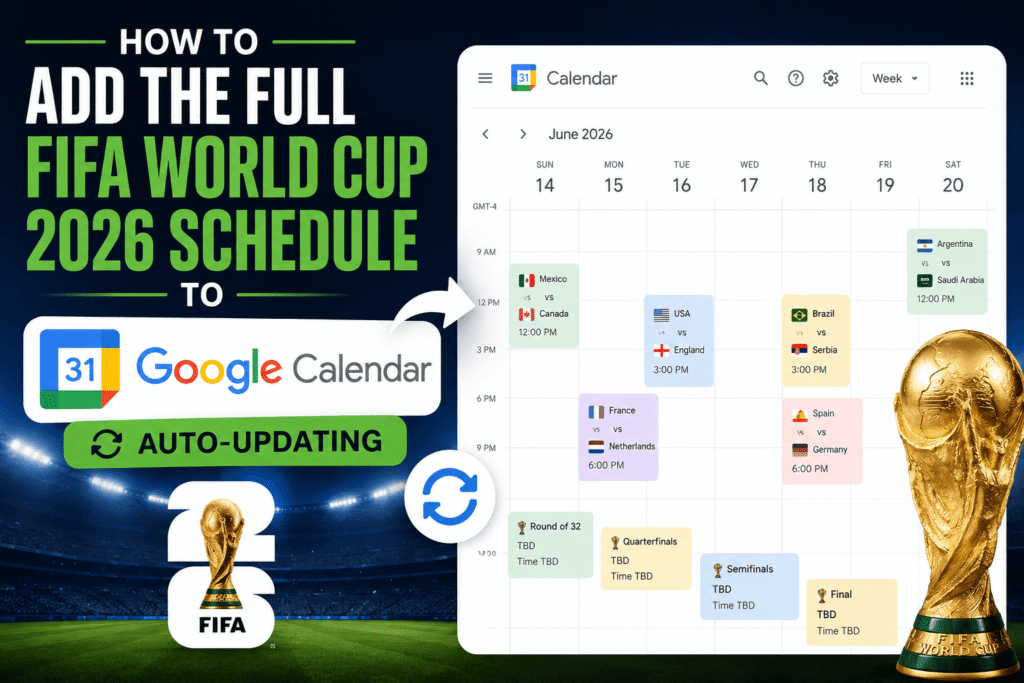
The easiest method is a one-click sync through Sync2Cal. Go to https://www.sync2cal.com/sports/soccer/international/fifa-world-cup-2026, click the “Add to Google Calendar” button, and approve the connection. Every match appears in your Google Calendar within seconds, with the kickoff time automatically converted to your local time zone.
No manual entry. No downloading files. The schedule stays current if any match times change.
Step-by-Step: Sync the Full Schedule in Under 60 Seconds
Follow these steps to add all FIFA World Cup 2026 fixtures to Google Calendar:
- Open the Sync2Cal page – Go to https://www.sync2cal.com/sports/soccer/international/fifa-world-cup-2026 in your browser.
- Click “Add to Google Calendar” – The button is on the main page. It will prompt you to sign in to your Google account if you aren’t already.
- Approve the calendar subscription – Google Calendar will ask you to confirm. Click “Add calendar.”
- Check your Google Calendar – Open calendar.google.com. You will see a new calendar called something like “FIFA World Cup 2026” in your left sidebar, with all matches listed.
That’s all. The calendar is now live in your account.
Why the Auto-Updating Feature Matters
A static .ics file (the old method of importing sports schedules) gives you a frozen snapshot. If FIFA changes a kickoff time – which happens regularly during major tournaments – your calendar entry stays wrong.
Sync2Cal uses a live calendar subscription. This means Google Calendar checks for updates automatically, usually every 24 hours. Any official changes to match times or dates are pulled in without you doing anything.
This is the same technology used by most sports calendar apps. The technical term is a “calendar feed” or “webcal subscription.”
How to Add the Schedule to Apple Calendar or Outlook Instead
Sync2Cal also provides an iCal link that works with any calendar app, not just Google Calendar.
For Apple Calendar (iPhone, iPad, Mac):
- Go to the same Sync2Cal page.
- Copy the iCal/webcal link.
- On iPhone: go to Settings > Calendar > Add Account > Other > Add Subscribed Calendar, then paste the link.
- On Mac: open Calendar, go to File > New Calendar Subscription, and paste the link.
For Outlook:
- Copy the iCal link from the Sync2Cal page.
- In Outlook, go to Calendar > Add Calendar > Subscribe from web.
- Paste the link and click Import.
All versions stay auto-updating.
What’s Included in the FIFA World Cup 2026 Calendar
The Sync2Cal calendar includes all 104 official FIFA World Cup 2026 matches across the three host countries – the United States, Canada, and Mexico (FIFA, 2026). Each event entry shows:
- Match name (e.g., “Group A – Match 1” or team names once groups are set)
- Kickoff date and time in your local time zone
- Host city and venue name
The tournament runs from June 11 to July 19, 2026, making it the longest FIFA World Cup in history by number of matches (FIFA, 2026).
Common Problems When Adding the Calendar
| Problem | Likely Cause | Fix |
|---|---|---|
| Matches show wrong time | Phone time zone is set incorrectly | Go to Settings > General > Date & Time and enable “Set Automatically” |
| Button doesn’t open Google Calendar | You’re not signed in to a Google account | Sign in at google.com first, then return to the Sync2Cal page |
| Calendar doesn’t appear after approving | Google Calendar sync delay | Wait 2-3 minutes and refresh calendar.google.com |
| Duplicate calendar entries | You imported an .ics file AND subscribed via Sync2Cal | Delete the manually imported calendar in Google Calendar settings |
| Updates not showing | Apple Calendar refresh interval is too long | On Mac, go to Calendar Preferences > Accounts > set refresh to “Every hour” |
Frequently Asked Questions About Adding FIFA World Cup 2026 to Google Calendar
How do I add FIFA World Cup 2026 to Google Calendar?
Go to https://www.sync2cal.com/sports/soccer/international/fifa-world-cup-2026 and click “Add to Google Calendar.” Sign in to your Google account when prompted and confirm the subscription. All 104 matches will appear in your calendar within a few seconds.
Does the FIFA World Cup 2026 Google Calendar update automatically?
Yes. When you subscribe through Sync2Cal, you get a live calendar feed rather than a static file. Google Calendar checks for updates roughly every 24 hours, so any official changes to kickoff times are reflected without any action on your part.
Can I add the FIFA World Cup 2026 schedule to Apple Calendar or Outlook?
Yes. Sync2Cal provides an iCal/webcal link on the same page that works with Apple Calendar (iPhone, iPad, Mac) and Outlook. The process takes about two minutes and the auto-update feature works on those platforms too.
Is the Sync2Cal FIFA World Cup calendar free?
The basic calendar subscription on Sync2Cal is free. Check the site for any premium features or account requirements.
How many matches are in the FIFA World Cup 2026 schedule?
FIFA World Cup 2026 has 104 matches in total, up from 64 in previous editions. The increase is because the tournament expanded to 48 teams for the first time (FIFA, 2026). Matches are played across 16 host cities in the US, Canada, and Mexico.
What time zone will the matches show in on my Google Calendar?
Google Calendar automatically converts all match times to your device’s local time zone. If you travel during the tournament, the times will adjust to wherever you are.
Can I turn off notifications for matches I don’t care about?
Yes. Once the FIFA World Cup 2026 calendar is in your Google Calendar, open any match event, click Edit, and remove or adjust the notification. You can also mute the entire calendar by clicking the three-dot menu next to its name in the sidebar and selecting “Settings.”
Key Takeaways
- The one-click method at sync2cal.com is the fastest and most reliable way to get the full FIFA World Cup 2026 schedule into Google Calendar.
- A live subscription keeps your calendar accurate if match times change – a static .ics import does not.
- The same iCal link from Sync2Cal works for Apple Calendar and Outlook, so the method isn’t limited to Google users.